Add PDF Margins / Guide
How to add margins to a PDF on iPad
A PDF can fill the page right to its edges. To make room for notes, expand the page area before you start writing. The original content can keep its geometric size.
What you need
An iPad running iPadOS 18.1 or later, Add PDF Margins, and a readable PDF from a compatible app. One PDF at a time. There is no fixed file-size or page-count limit: suitable PDFs over 100 MB or with more than 500 pages can also be processed when enough memory and free storage are available. This does not guarantee success for every file; processing can be refused even for smaller PDFs if resources are low or cannot be measured reliably. If the file requires a password to open, provide an unlocked copy with permission to modify it.
Step by step
- Share the PDF
Open the document in a compatible app, use Share or Open In and select Add PDF Margins. If the action is missing, check which document sharing actions the source app offers. The app has no built-in file browser.
- Set the note column
Choose 50% on the right and 0% for left, top and bottom. Each edge also offers 25, 75 and 100%. The diagram shows proportions, not the contents of your PDF. All pages receive the same settings.
- Create and save the result
Tap Create PDF. On the result screen, select Save or share PDF and choose a destination. Save the new document before starting another operation. Your input file is not overwritten.
- Add your notes in another app
Open the saved PDF in your preferred PDF or note-taking app. Writing and highlighting are features of that app. Check the exported pages before you continue.
Try a small example first
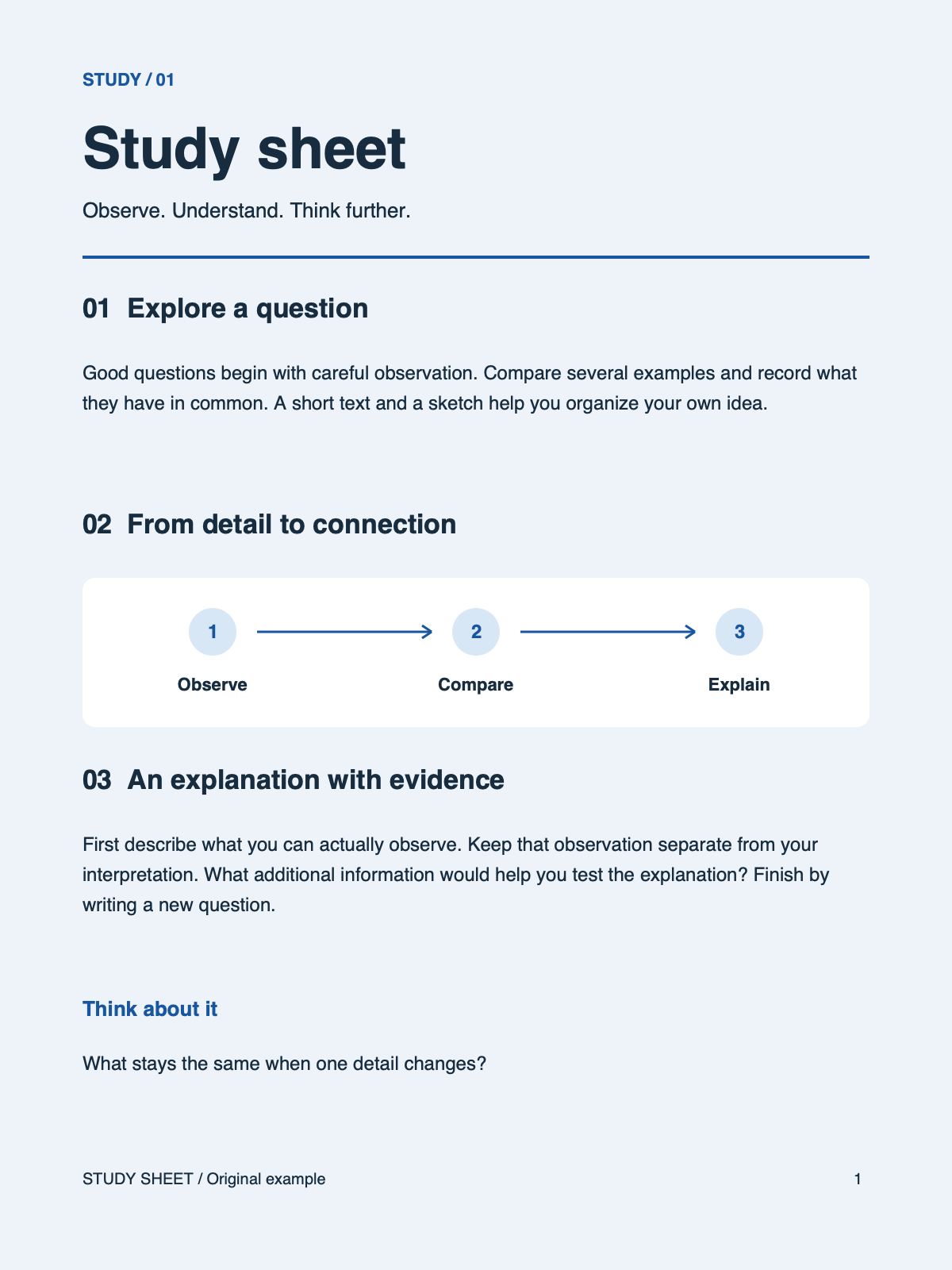
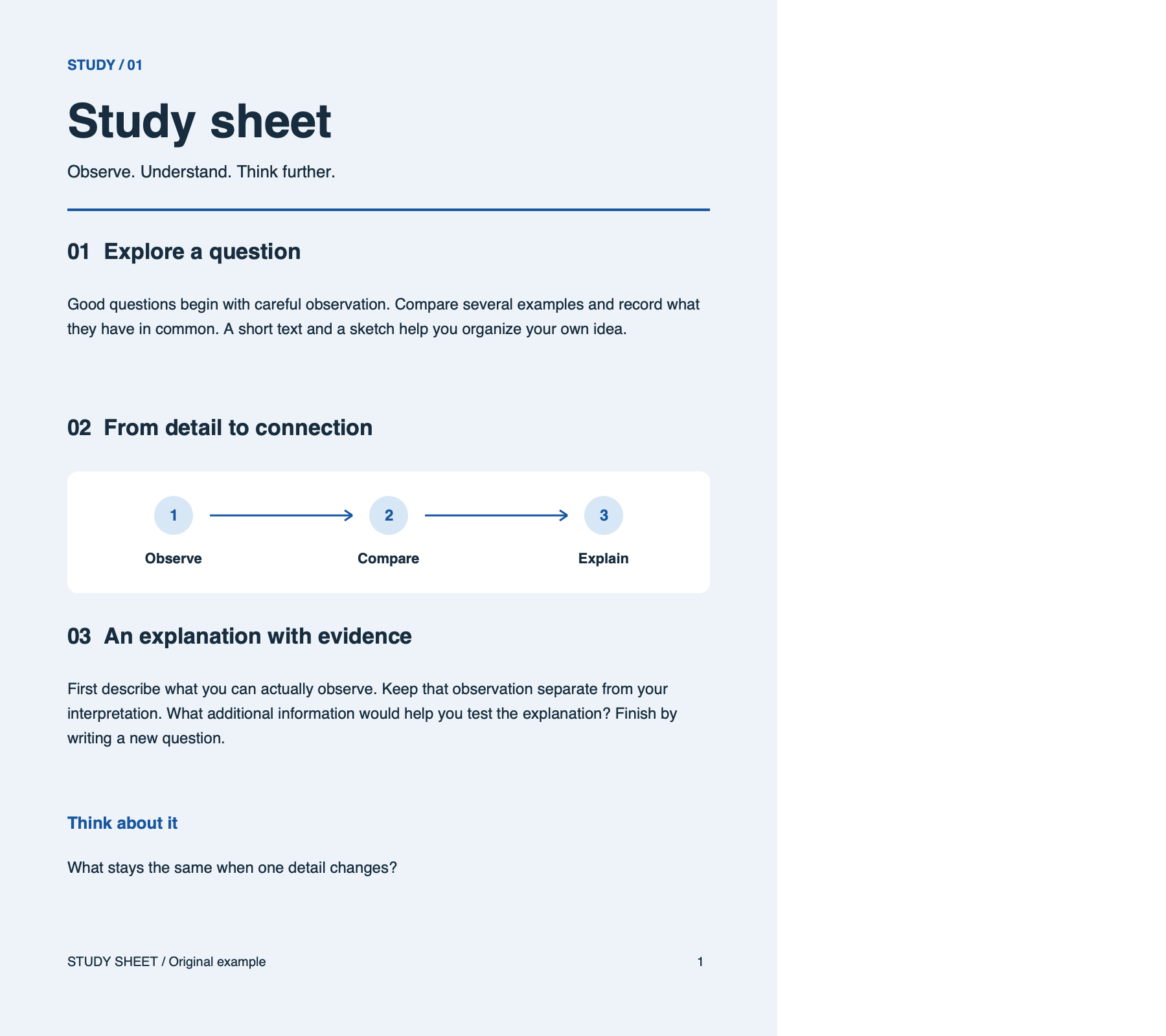
The two excerpts use the same content scale. This is an exported example, not a live document preview. A viewer may fit the larger page to your screen.
Common questions
Why does the content look smaller?
The page is wider; a viewer fitting it to the screen may zoom out. The previously visible content keeps its geometric size. Zoom in to compare details.
Can I change only some pages?
The chosen margins apply to every page. Page selection and writing tools are not part of this app.
What needs checking?
Links, form features, digital signatures and accessibility structure may change or be lost. Added space can expose previously hidden content. File providers may synchronise documents independently; the margin processing itself runs locally on your iPad.