Add PDF Margins · iPad
More room for
your notes.
Add blank margins to PDF pages on your iPad, then keep working in your preferred PDF or note-taking app.
iPadOS 18.1 or later · One-time purchase · No subscription
See the current price in your App Store.
For larger and longer PDFs too
The previous 100 MB and 500-page limits have been removed. Processing depends on available resources on your iPad and safe page dimensions. What this means for your PDF.
Same content. More room beside it.
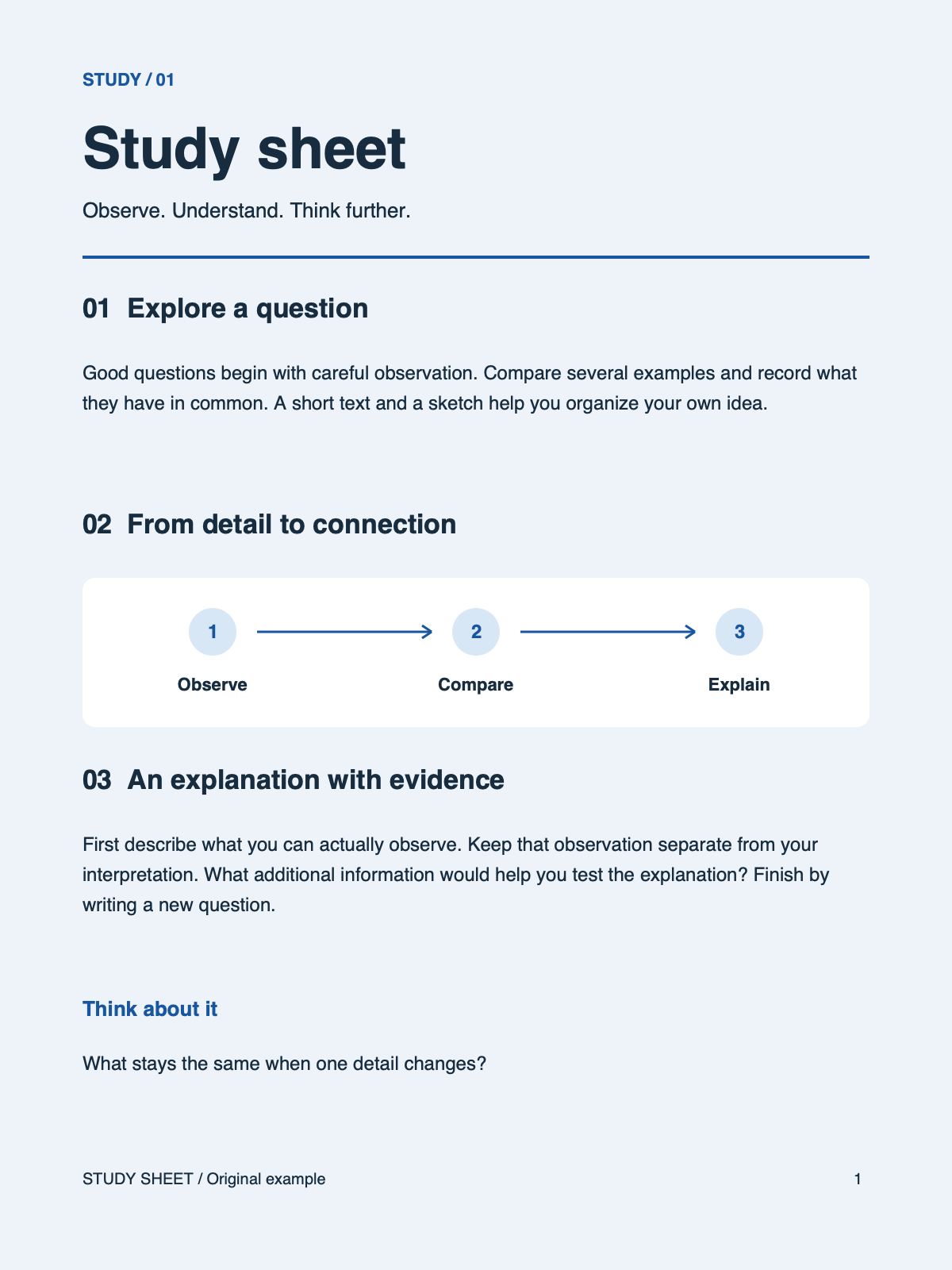
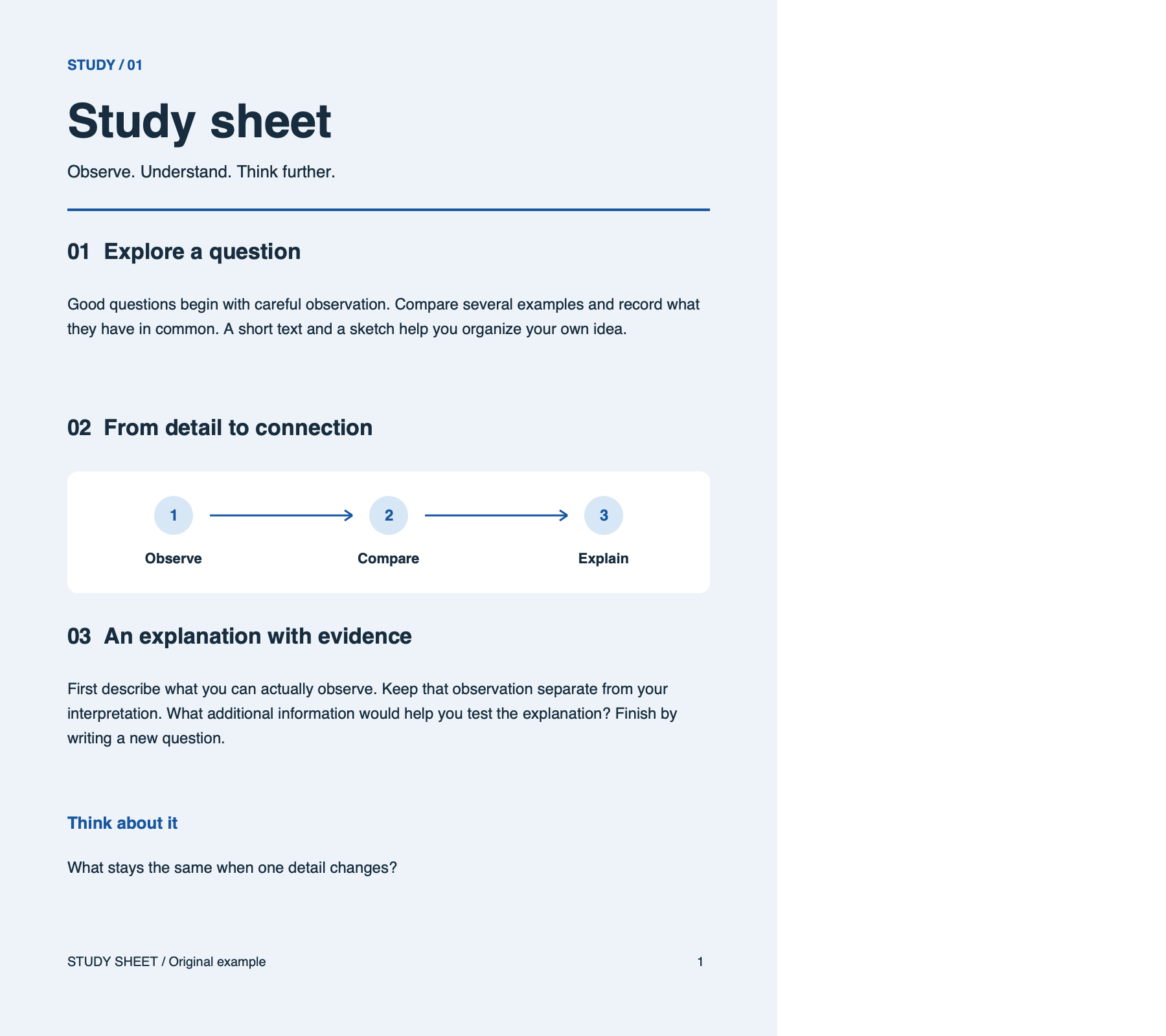
The two excerpts use the same content scale. This is an exported example, not a live document preview. A viewer may fit the larger page to your screen.
Share. Choose. Keep working.
- Share one PDF
Start in a compatible app using its Share or Open In action and select Add PDF Margins. Available actions depend on the source app.
- Choose four margins independently
Choose 0, 25, 50, 75 or 100% of the original page width or height for each edge. The proportions diagram shows the original area and added space. The same settings apply to every page.
- Create and use the new PDF
Tap Create PDF. On the result screen, choose Save or share PDF, then select a destination in the system Share menu. Add your notes in another app.
Follow the workflow
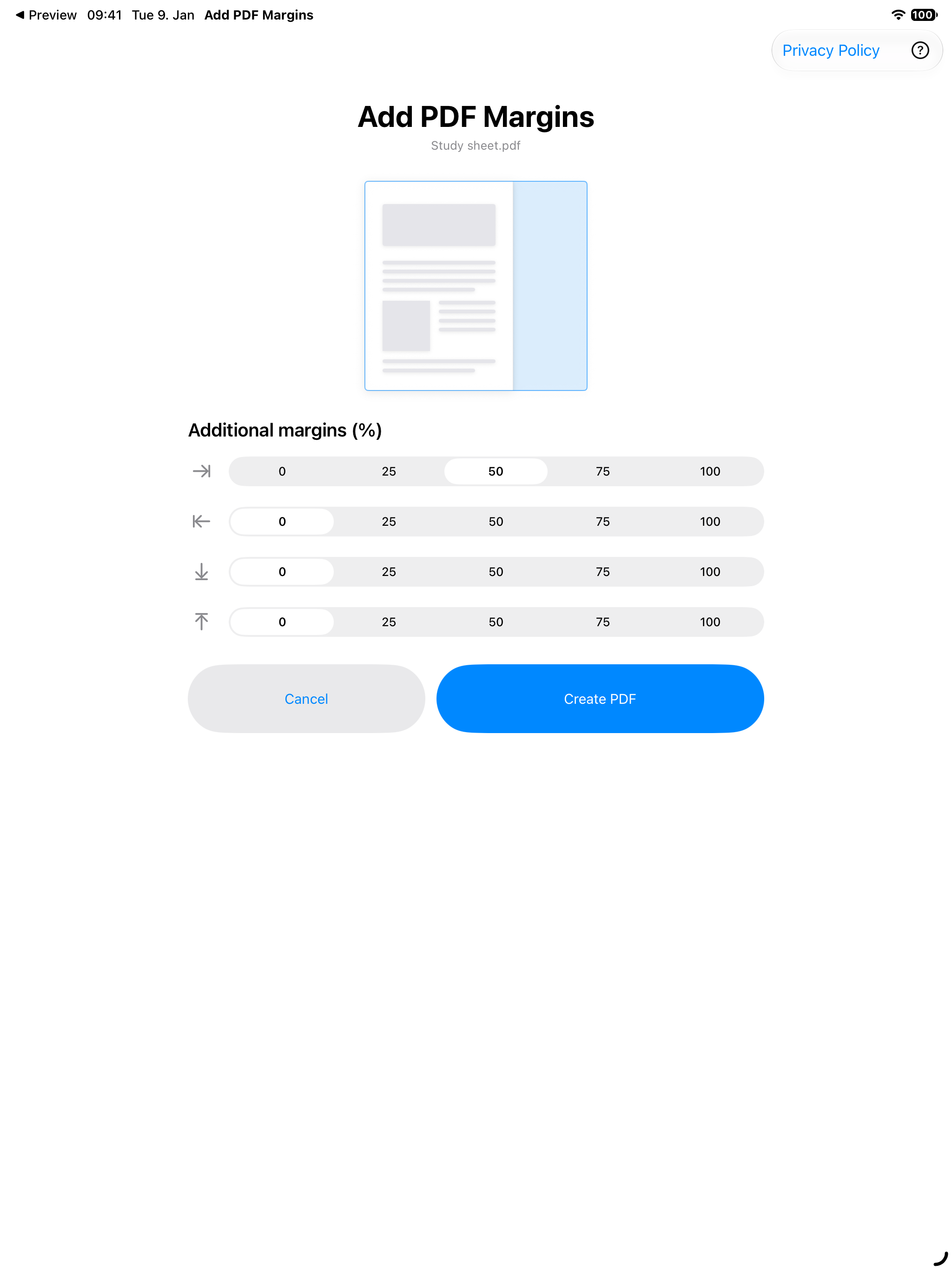
This real app view shows a right margin of 50%, with the other margins set to 0%. Follow these steps to create and use your new PDF.
Step by step
- Open one PDF in a compatible app, such as Apple’s Preview, and tap Share or Open In.
- Choose Add PDF Margins. Available sharing actions depend on the app and system version.
- Set the right margin to 50%; leave the other margins at 0%. The diagram shows page proportions.
- Tap Create PDF. On the result screen, choose Save or share PDF and select a destination.
- Open the saved result in your preferred PDF or note-taking app. Add your notes there; your original remains unchanged.
Space for what you want to add.
Studying and reading
Keep definitions, questions and links between ideas beside the text. A right margin of 50% gives you a clear note column alongside slides or papers.
Teaching materials
Prepare a worksheet with room for answers or sketches. Add space below for longer solutions, or beside the content for short comments.
Questions before you start
How do I start?
Send exactly one PDF from a compatible app using Share or Open In. Add PDF Margins has no built-in file browser.
Can I write notes in Add PDF Margins?
The app adds blank space. Writing, drawing and highlighting happen afterwards in your PDF or note-taking app.
Does processing stay on my iPad?
Yes. The PDF processing runs locally without an account, analytics or advertising. A source or destination file provider may use its own cloud synchronisation.
What happens to my original?
A new PDF is created. The input file is not overwritten. The previously visible content keeps its geometric size; its display size depends on your viewer.
Which files can I use?
One PDF at a time. There is no fixed file-size or page-count limit: suitable PDFs over 100 MB or with more than 500 pages can also be processed when enough memory and free storage are available. This does not guarantee success for every file; processing can be refused even for smaller PDFs if resources are low or cannot be measured reliably. Provide a readable, unlocked PDF with permission to modify it. Page-dimension safety limits still apply.
What should I check after export?
Links, form features, digital signatures and accessibility structure may change or be lost. Previously hidden content may become visible in the expanded area. Check the result in your destination app.